
GitHub CLI is a wonderful new tool released by GitHub in an effort to bring GitHub to the terminal. In this tutorial, I will be showing you how to setup, install and use some basic features of GitHub CLI.
Installation
Because of the amount of install methods, I've taken the liberty of creating a separate article dedicated to installation methods.
Authentication
When you first try to run gh, it will ask you to authenticate with your GitHub account.
gh auth login
Select if you are authenticating with a GitHub Enterprise Server, or GitHub.com. In this tutorial, I will be authenticating with GitHub.com.
? What account do you want to log into?  [Use arrows to move, type to filter]
> GitHub.com
  GitHub Enterprise Server
Next, select if you wish to authenticate with a web browser, or with an authentication token. To keep it simple, I'll authenticate with a web browser.
? How would you like to authenticate?  [Use arrows to move, type to filter]
> Login with a web browser
  Paste an authentication token
Make sure to copy your one-time code before pressing "Enter" to open the authentication window.
! First copy your one-time code: <your code will be here>
- Press Enter to open github.com in your browser...
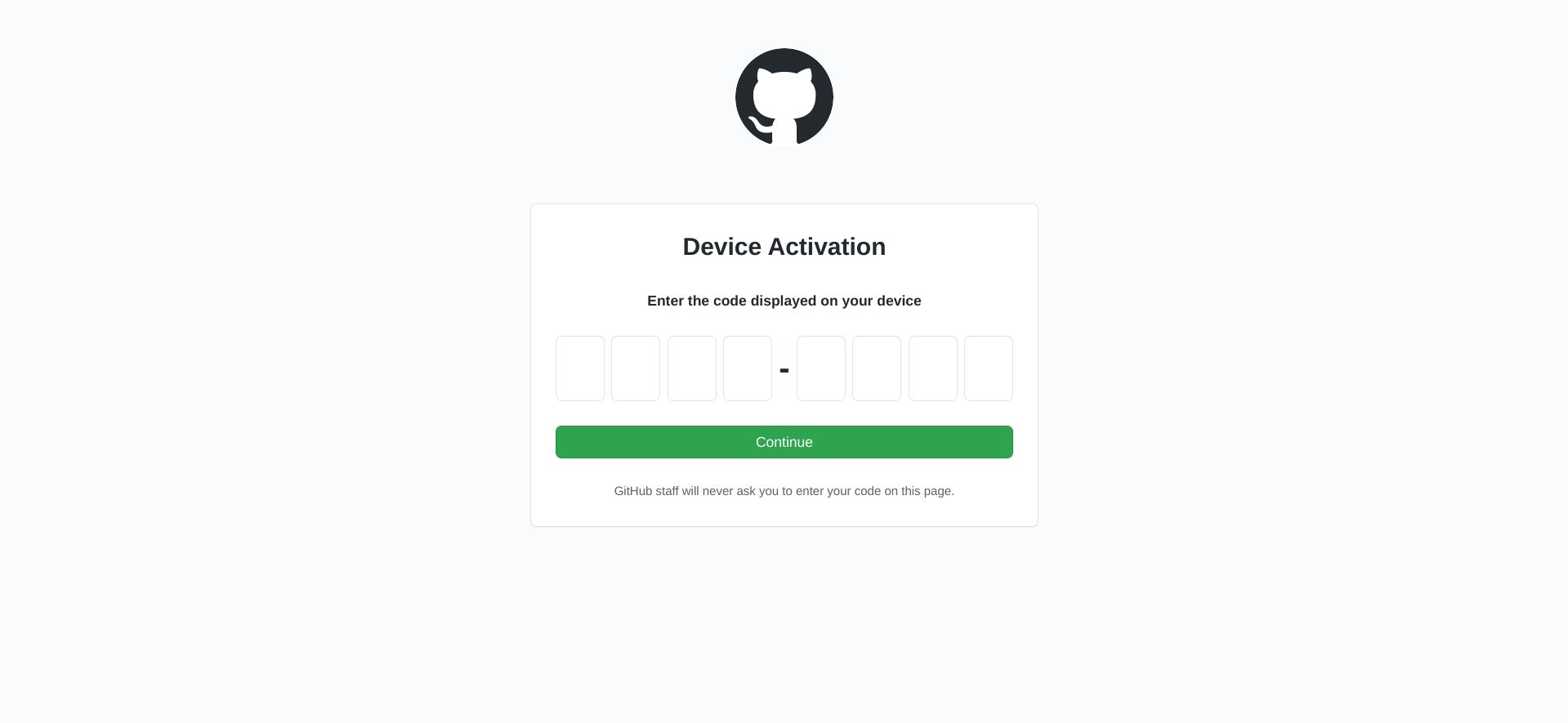
After entering your activation code, you will be brought to the OAuth page.
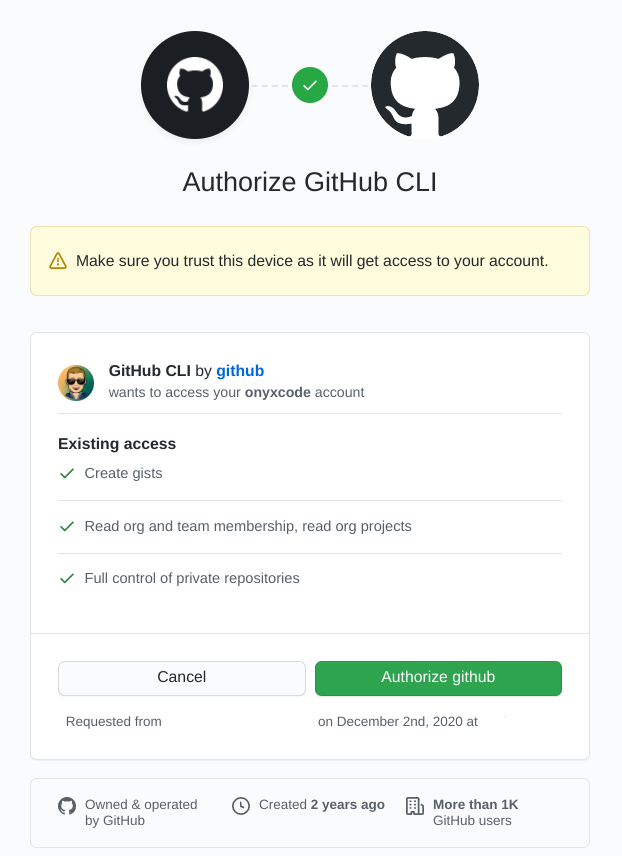
After authorizing, and confirming your password, you will be brought to this page.
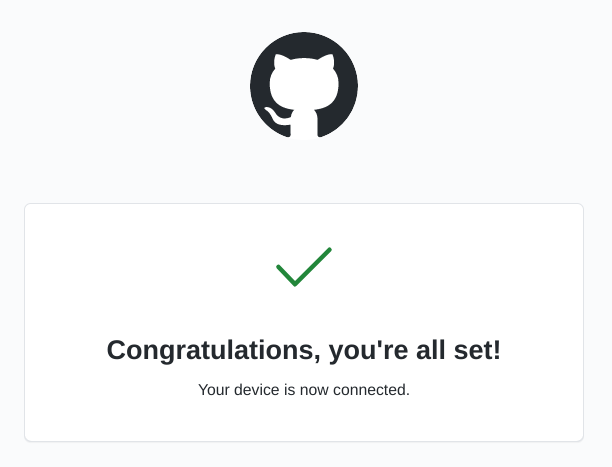
Congratulations! You are now authenticated! Returning to the terminal, you will be greeted with this message.
✓ Authentication complete. Press Enter to continue...
One last thing!
? Choose default git protocol  [Use arrows to move, type to filter]
> HTTPS
  SSH
I'd recommend using HTTPS, since it's the most widely used protocol, so I'll be choosing it.
✓ Configured git protocol
✓ Logged in as onyxcode
Congrats! You're done setting up GitHub CLI!
Usage Examples
Full documentation at cli.github.com/manual.
- Create a public gist
gh gist create --public hello.py
- Clone a repository
gh repo clone onyxcode/hazy
- List issues for a repository
gh issue list -R Rapptz/discord.py
- Download latest release
gh release download -R microsoft/winget-cli
In closing
I hope you found this article helpful! If you did, share and like!
About the author
I am a developer from Australia, c̶u̶r̶r̶e̶n̶t̶l̶y̶ always learning Python.
Comments
Join the discussionthat was cool


